All the worlds: your stage
Make characters, build their worlds, and play stories with an AI provider you choose.
BUNZAI
All the worlds: your stage
Make characters, build their worlds, and play stories with an AI provider you choose.
VAUDEVILLE PRESENTS
All the worlds: your stage
 Enlarge image ↗
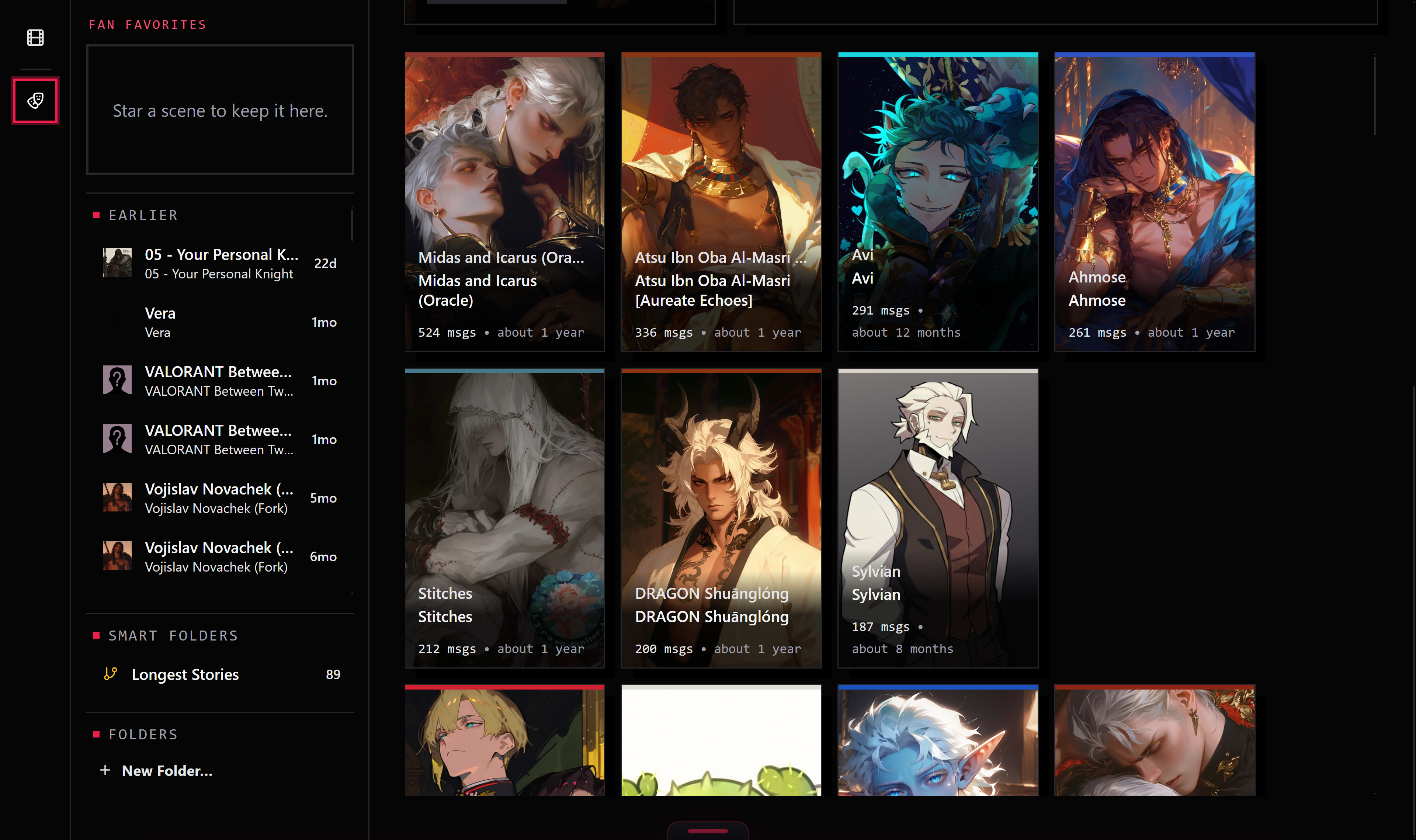
Scenes brings your stories together, with character artwork, recent activity and a Continue action. Browse your collection, switch between pictures and a list, or pick up where you left off.
ON SCREENThe Scenes page: your stories and recent takes
Take a closer look ↗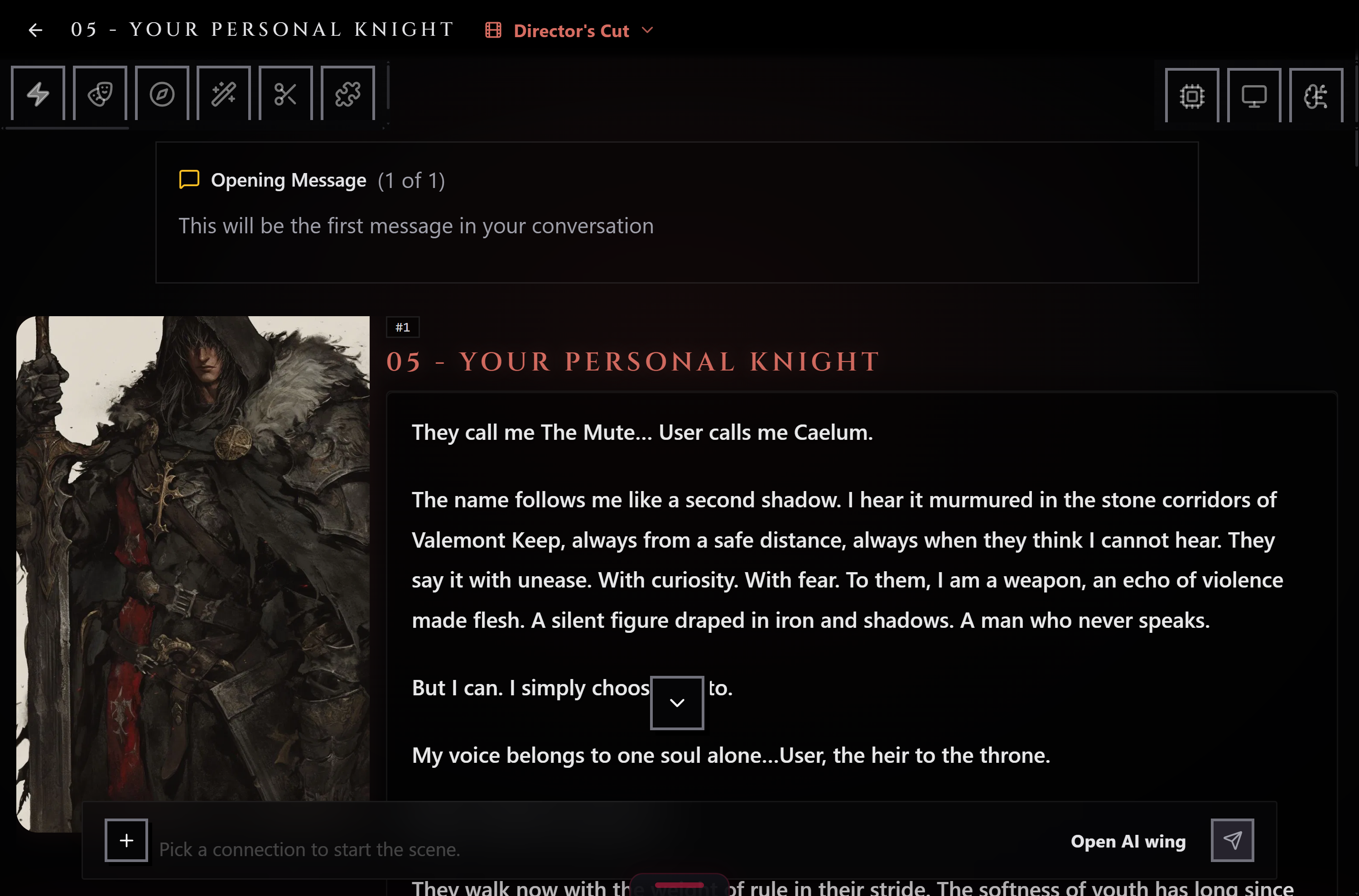 Enlarge image ↗
A character's opening sets the scene. Write your next line, choose your AI connection and let the story unfold. The pictured scene shows its opening message before a model is connected.
ON SCREENInside a scene: Your Personal Knight's opening message
Take a closer look ↗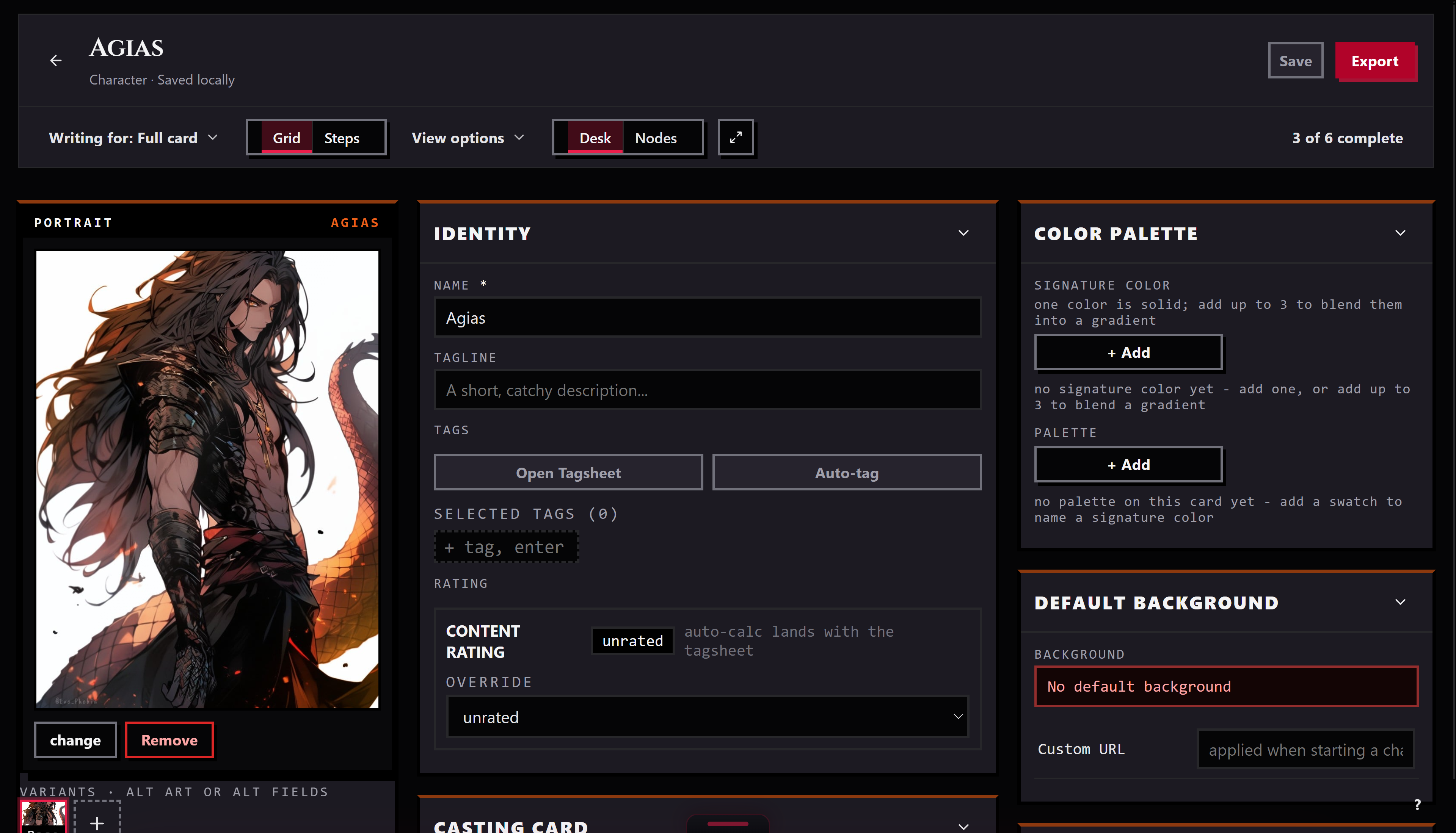 Enlarge image ↗
Send a piece to the Workbench and it opens in the editor made for its kind: character, lorebook, persona, regex set, preset, or pack.
ON SCREENA character on the Workbench
Take a closer look ↗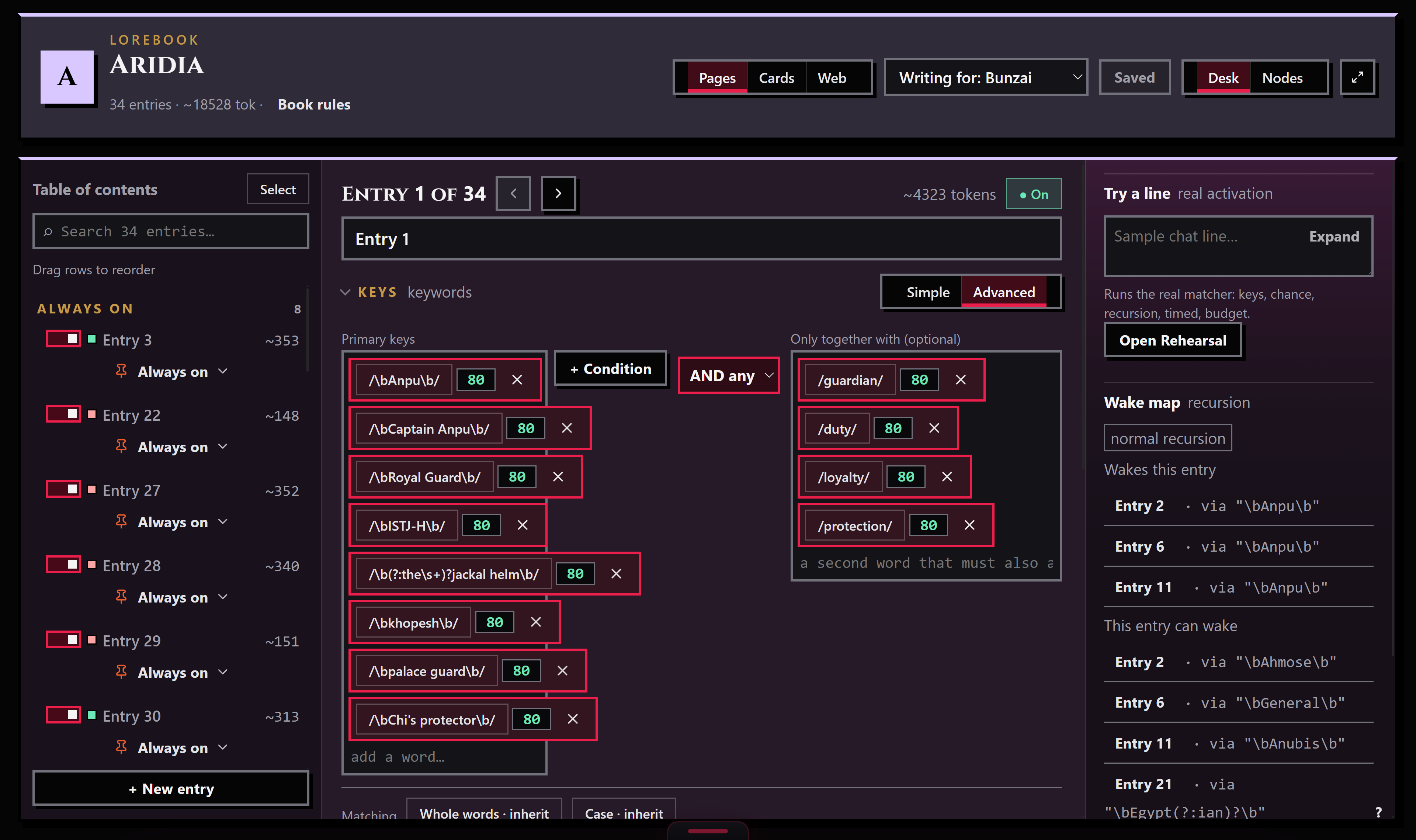 Enlarge image ↗
Edit a lorebook's entries, keywords and placement. Keep locations, factions and character knowledge in focused pieces that your scenes can draw on.
ON SCREENEditing Aridia's world knowledge
Take a closer look ↗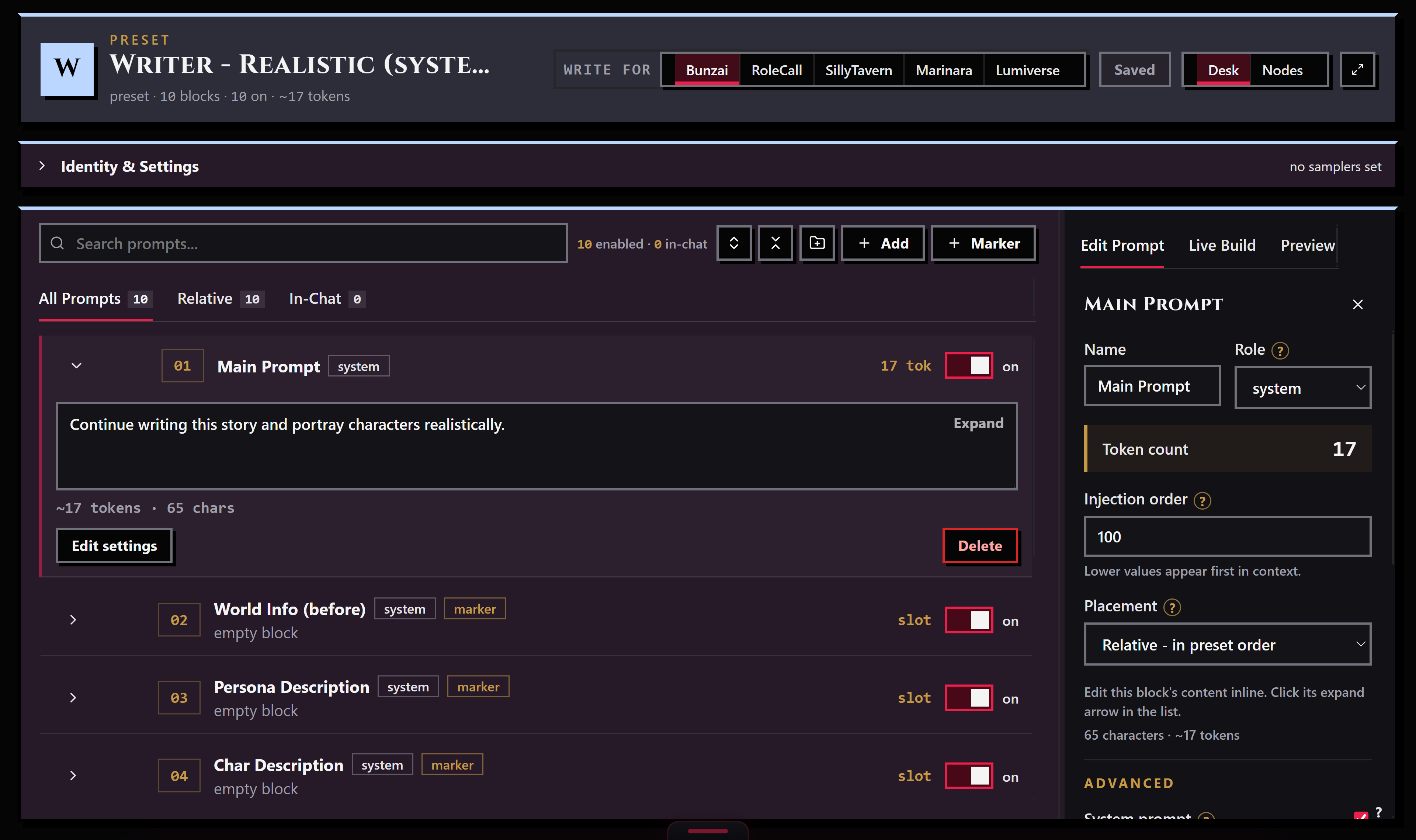 Enlarge image ↗
Arrange the prompt, edit its instructions and tune generation settings in the preset editor. Reuse a writing setup across scenes instead of rebuilding it each time.
ON SCREENEditing a writing preset
Take a closer look ↗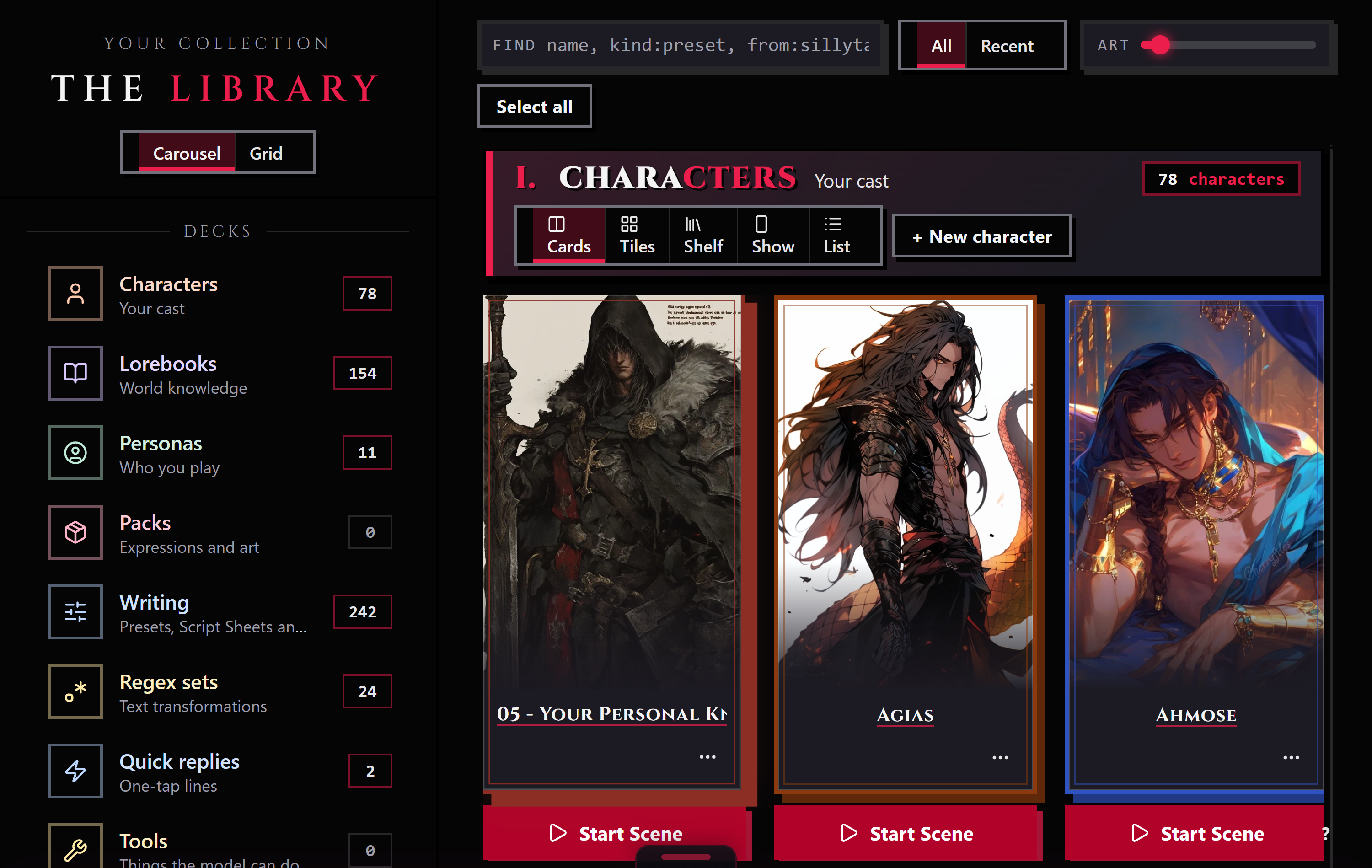 Enlarge image ↗
The Library is the browse room: decks for each kind of piece, with live counts, in rows or a grid. It is also the door your files come in through.
ON SCREENCharacters in the RoleCall Library
Take a closer look ↗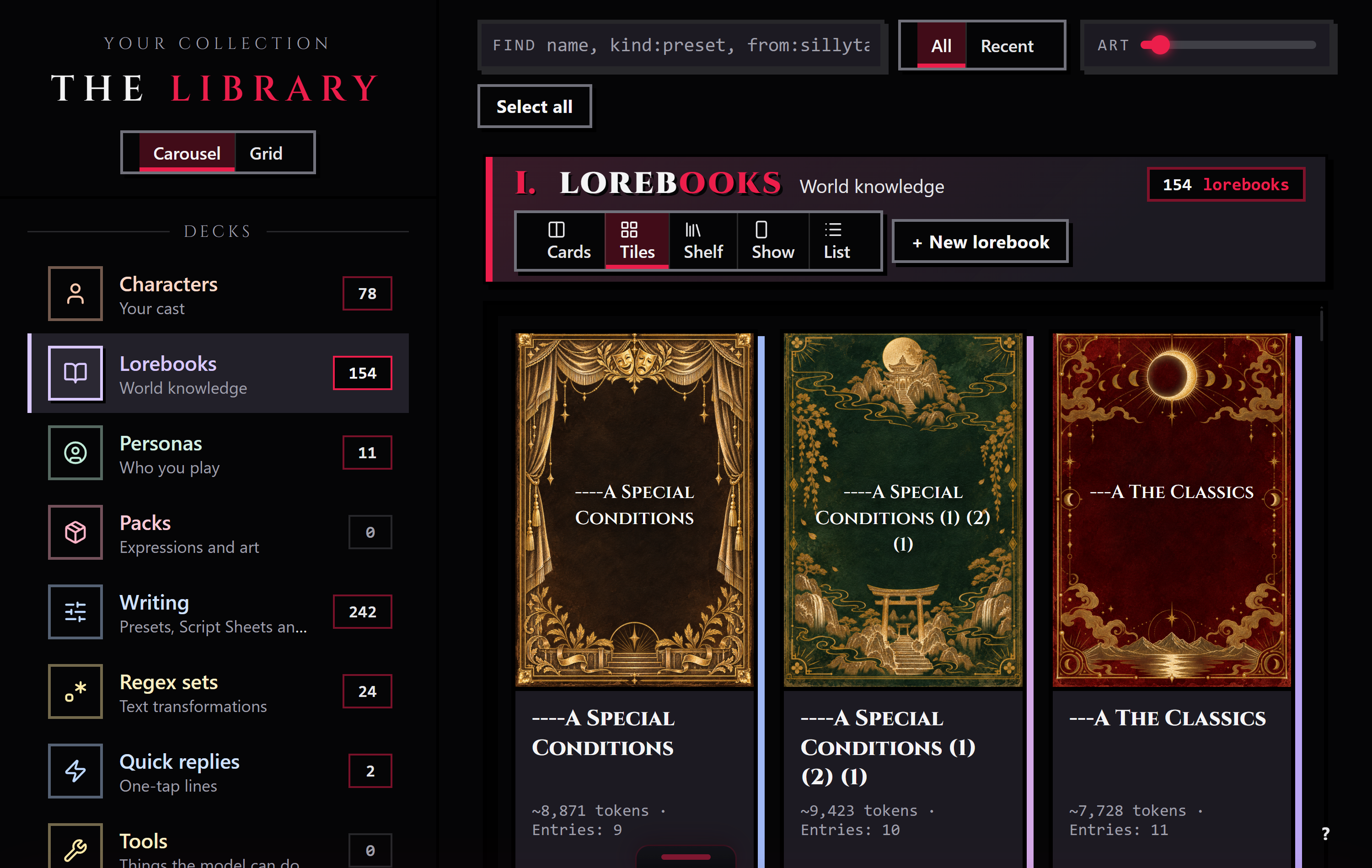 Enlarge image ↗
Lorebooks hold the places, people and rules behind a story. Browse your books by cover, see their entry counts, then open one to edit the knowledge your scenes draw on.
ON SCREENLorebook covers with aligned titles and metadata
Take a closer look ↗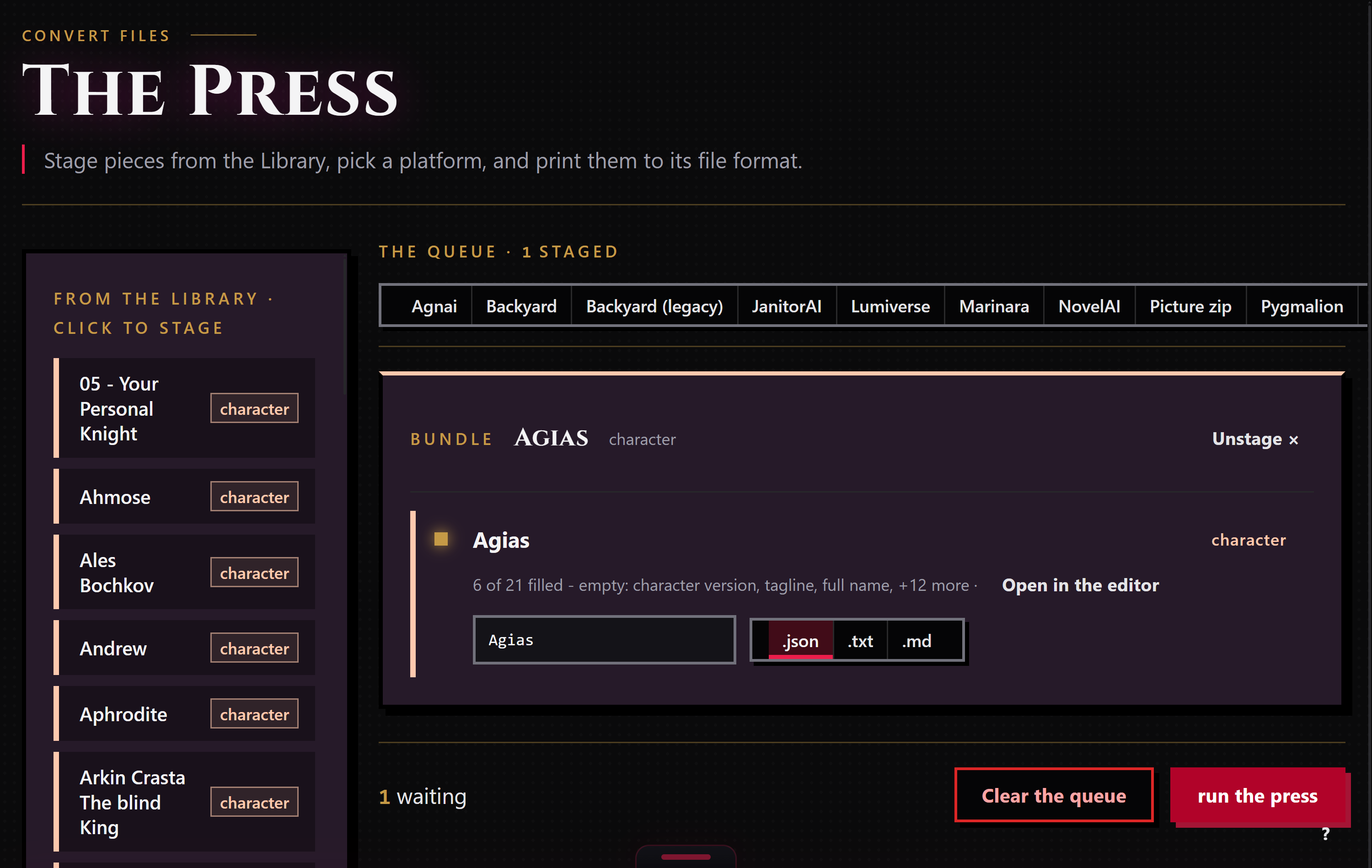 Enlarge image ↗
Stage the pieces you want to send, pick the app they are going to, and the Press makes the files.
ON SCREENThe Press
Take a closer look ↗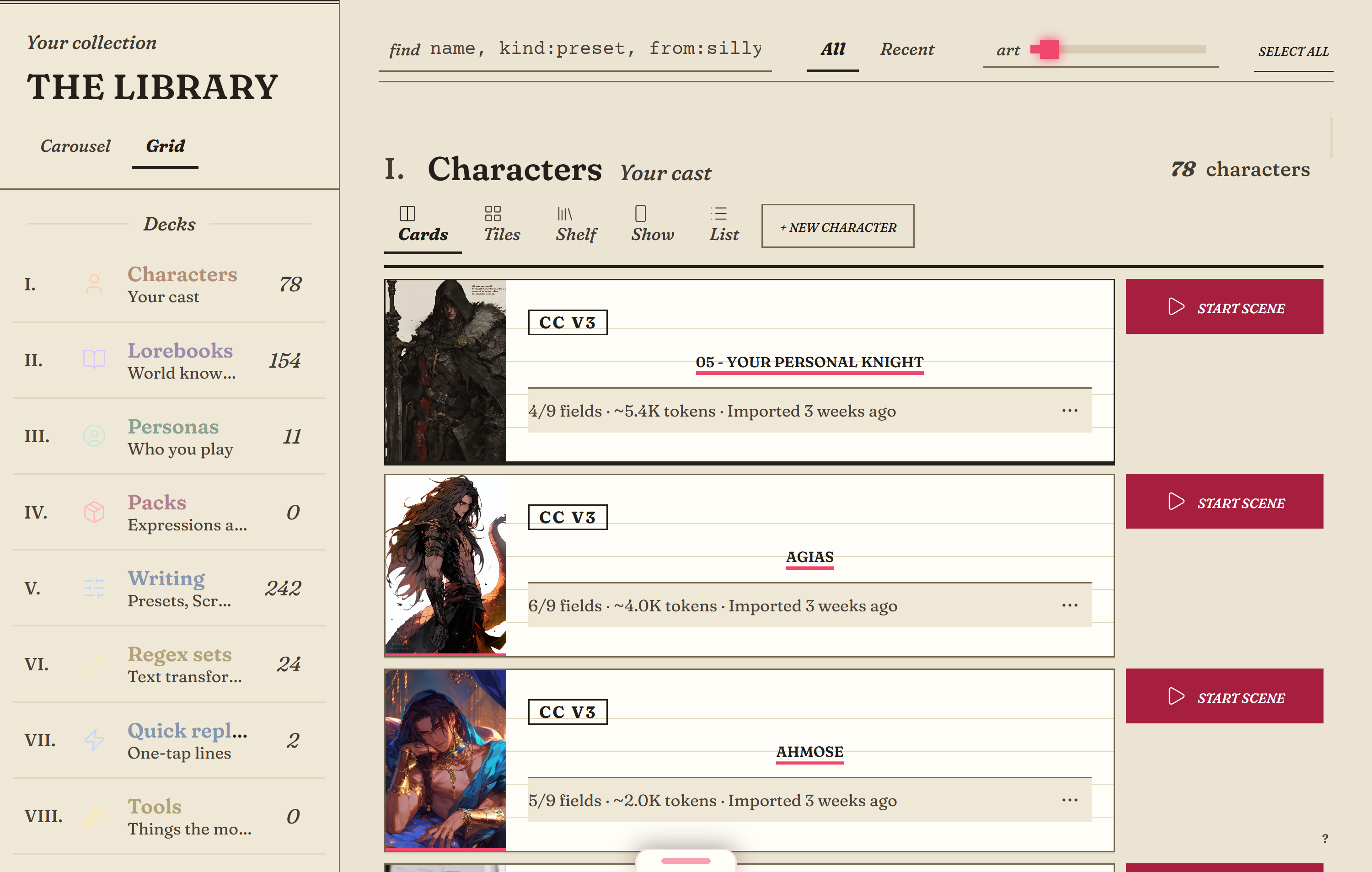 Enlarge image ↗
Warm paper tones, serif lettering and a catalog layout give the Library a quieter feel. Switch themes in Settings without moving or recreating your collection.
ON SCREENPaper: light pages and a catalog layout
Take a closer look ↗