Docs / User / Edit a piece
Edit a piece
Editing happens on the Workbench. A piece opens there as its own tab, already filled in with whatever your import carried, or with the blank template you started from, and it stays a private draft until you save it. A character gets the deepest editor: two ways to fill it in, a platform lens that previews what a target format keeps, and a workshop for its scripts. A pack, lorebook, regex set, persona, or preset opens its own simpler editor, but the save mechanics below are the same for every kind.
The short version
- Open it. From the Library, right-click a piece and choose Send to the Workbench, or click one or more pieces to stage them and use the send bar's Send button. Each piece opens as its own tab; a piece that is already open just tells you so, it does not reopen.
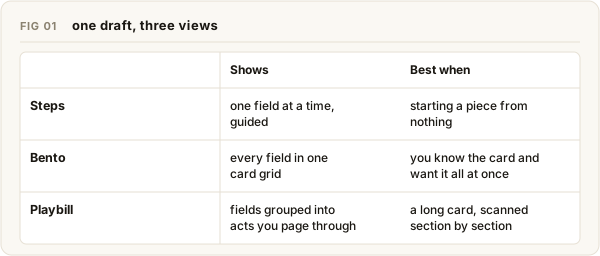
- Pick how you fill it in. Grid shows every field to edit directly; Steps walks you through it like a quiz. Toggle between them in the header, alongside Bento and Playbill, Grid's two layouts: Bento shows every field at once, Playbill turns them into acts you page through.
- Change what you need. Edit fields directly in Grid, or answer one question at a time in Steps. The platform tabs above the fields preview what a target format keeps; picking one only changes what you see, never what is saved.
- Save it. Click Save, or press ctrl+s. A dot on the tab means something is unsaved; the button reads Save until there is nothing left to save.
- Close the tab when you're done. Closing never asks you to confirm, so save first.
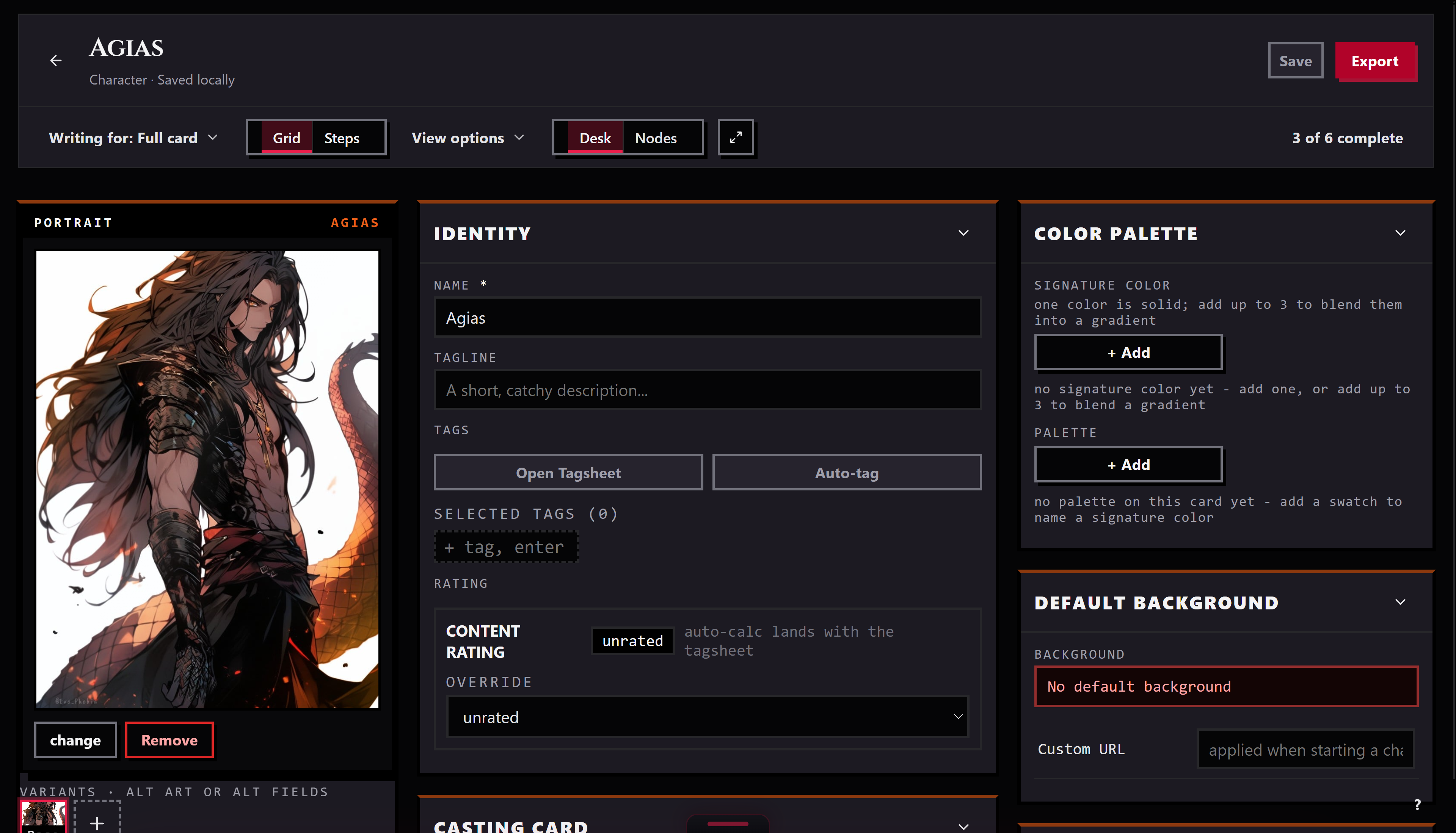
The editor panels
A character's editor opens with a strip of platform tabs above the fields. The first, labeled Bunzai, is the full card with nothing hidden; select the platforms you're writing for and fields that platform can't carry leave the form. A Lens count next to the tabs says how many fields survive. Next to that, Hide and Dim look like two settings, but today they do the same thing: fields drop out of the form either way, dim included, that half is not built yet.
Below the tabs, the header carries the piece's name, a scale control, the Grid/Steps and Bento/Playbill toggles, Save, and Export. The toggles show only until you've taken the tour once; after that they live in Settings, under Workbench. Export is covered in Convert a card. Six completion chips, Portrait, Name, Core Prompts, Greeting, Tags, Lens Check, track what's filled in.
The body itself is a set of cards. A portrait card sits on the left, with links out to sprite and named-asset management. A Sealed Cargo card holds the original platform file whole and read-only, so a round-trip export loses nothing. A Variables card counts every macro your text actually uses. If the piece carries scripts, a Fields/Workshop switch in the header (this one doesn't retire to Settings) opens a separate scripting workspace beside the fields.
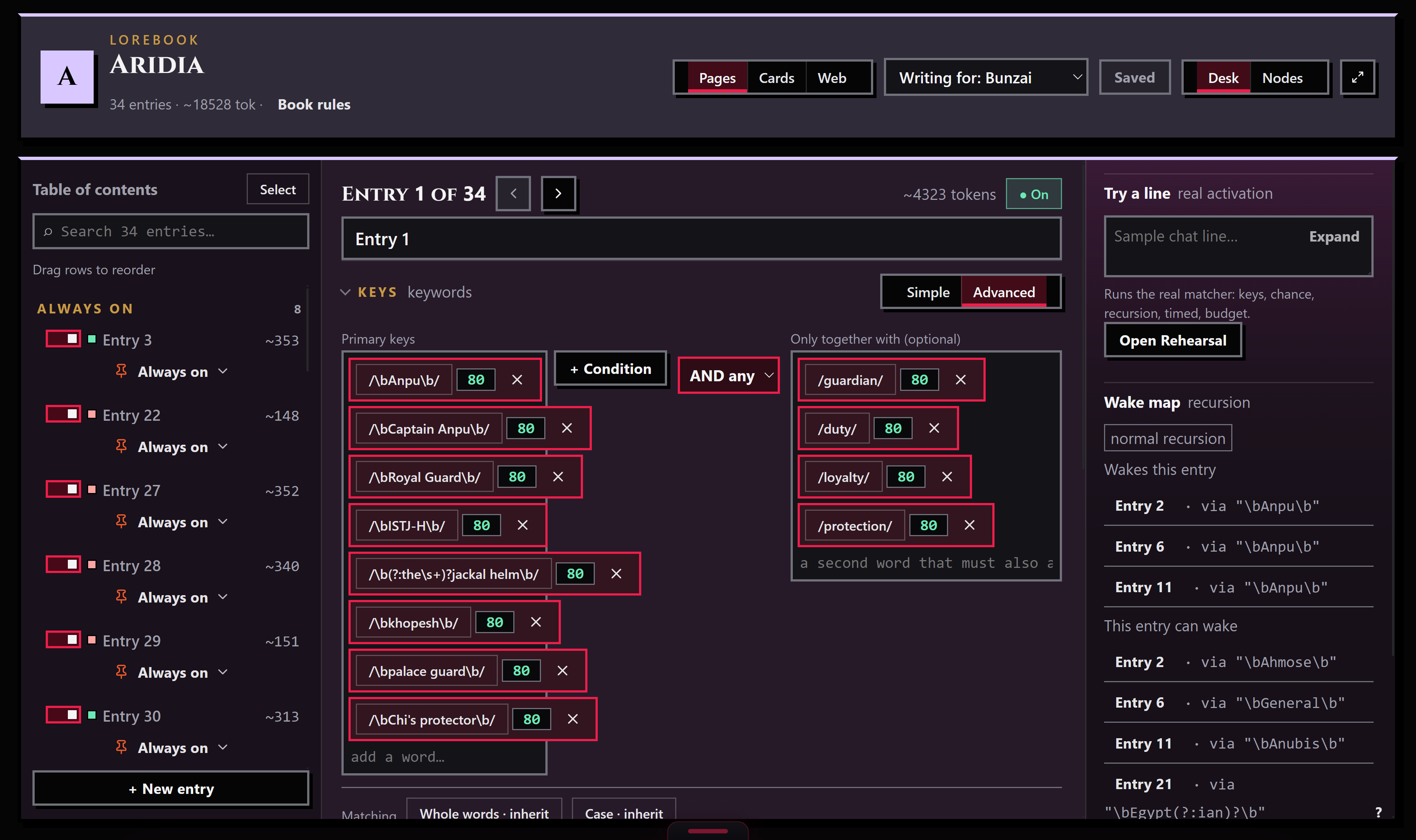
Other kinds keep it simpler. A pack is a name, a brief, and a sprite grid. A lorebook opens its own binder, one entry filling the screen at a time, with a table of contents down the left and that entry's keys, timing, and placement on the right. Regex sets, personas, and presets are closer to a single form. All of them save the same way.
Saving, and what happens if you don't
Every editor requires a name before Save does anything. Leave it blank and Save quietly does nothing, with the status line reading "a name is required before saving." The one exception is a pack, which falls back to "Untitled pack" instead of blocking.
Save writes your whole draft, not just what changed, so fields you haven't touched round-trip byte-for-byte. Ctrl+s saves from anywhere in the editor. While a save is in flight you can keep typing; if you outrun it, the status line says so ("Name saved; newer changes not yet saved") instead of pretending you're caught up. In Steps, the last question's Next button turns into Complete, and clicking it saves.
Closing a tab, the × or the Delete key, does not ask first. It just discards whatever is unsaved. The dot on the tab is the only warning you get, so treat it as the alarm it is.
Tips
- The dirty dot on a tab is the one thing to watch. No dot, no unsaved work.
- The platform tabs change what you see, not what you save. Click the Bunzai tab to clear the selection and see the whole card again.
- Sealed Cargo is read-only on purpose: it's what makes a same-app round-trip lossless.
- If your first-run tour already ran, the layout and mode toggles moved to Settings, under Workbench. Right-click anywhere and choose Replay tutorials to bring them back into the header.
- A piece with no scripts never shows the Workshop toggle. If you were expecting it, the card just doesn't carry any.