Docs / User / Build a lorebook
Build a lorebook
A lorebook is a set of entries, and each entry is a chunk of text plus the conditions under which it
gets injected into the prompt. Other apps call this world info, a character book, or memory; the
mechanics are the same. This page covers writing entries, keying them so they fire at the right moment,
and placing them in the assembled prompt.
The short version
- Create or open a lorebook. From the Library, click New lorebook on an empty shelf, or open one
you already have. - Add an entry. In the binder, click + New entry in the table of contents. A blank entry starts
with no keywords, so it will not fire until you give it one. - Give it keywords. Open the Keys card and type a word, then press Enter or a comma to add it as a
chip. Switch the entry to Always on or By meaning instead if you do not want it to depend on keywords
at all. - Place it. Open When & where, then Where, and pick a stop on the rail: World, Character, or a
richer position your target host supports. - Save. Click Save, or press ctrl+s.
Keywords and triggers
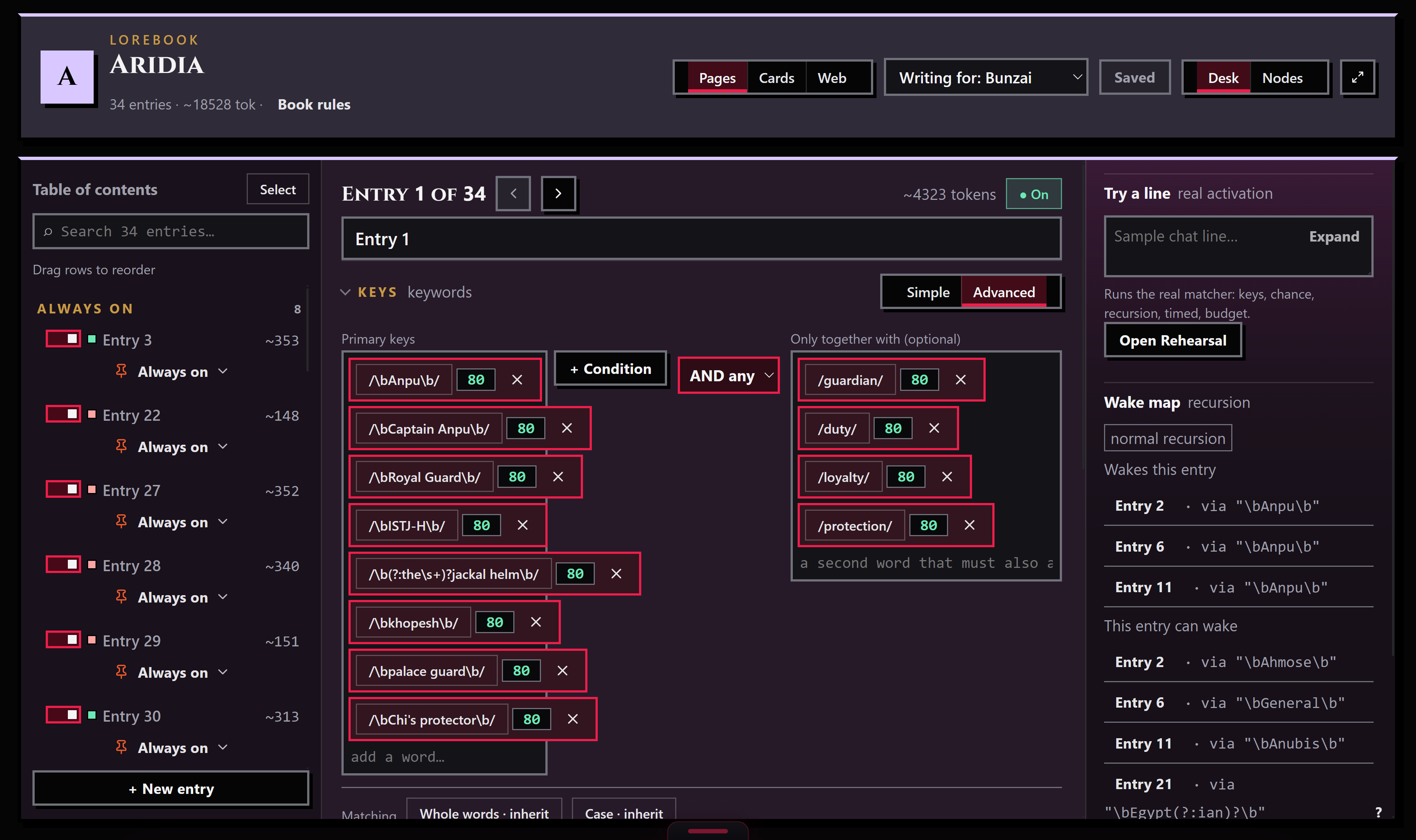
Each entry's Keys card holds its primary keywords, typed one at a time as chips. An entry fires one of
three ways, and you pick one per entry: Keywords, the default, fires when a key shows up in the recent
chat; Always on skips matching and injects every turn; By meaning fires on similarity to the chat rather
than an exact word, and only survives writing for the Bunzai lens or SillyTavern, since no other
host on the Writing for select carries it.
Switch the Keys card to Advanced to add a second, optional set of keys under "Only together with,"
combined against the primary set by AND any, AND all, NOT any, or NOT all. Advanced mode also exposes
regex (with flags), a per-key chance, and a minimum number of messages a key must wait between
activations. Whole-word and case-sensitive matching default from the book's Book rules and can be
overridden per entry; each toggle cycles inherit, on, off.
An entry set to Keywords with no keywords never fires. The health check flags this as a problem, and a
brand-new entry starts in exactly that state, so give it at least one key, or switch it off Keywords,
before you move on.
Where it lands

A key clearing the scan window is only the first gate. Chance, cooldown, sticky, and delay all still
have to pass, and if the book has recursion on, one entry's own text can wake another entry's keys,
itself gated by the same rules. If the book's token or entry budget is full, a fired entry can still be
cut. What survives lands at the position you picked on the Where rail, at the depth and role you set if
that position is Depth or Append, which behaves the same way.
World and Character are the portable floor: every host you can write for keeps these two. The richer
stops, Scene, Depth, Append, Top, Bottom, Before example, and After example, are only available under the
Bunzai lens; SillyTavern keeps a subset (World, Character, Depth, Before example, After example); Chub,
Lumiverse, and Agnai keep World and Character only; Risu and NovelAI have no placement dial at all, and
every entry lands on the character floor regardless of what you set. Pick a position your target host
does not carry and the rail keeps it, marked foreign, so on export it lands at its closest slot instead
of being lost.
Screenshot needed: the Where rail, showing the row of position stops and the depth/role fields that
appear when a Depth-like stop is selected.
Building the book
The table of contents groups entries into Always on and Entries, is searchable, and reorders by dragging
rows (only while you are not searching or in Select mode). A colored pip on each row shows the entry's
health at a glance: green for ready, amber for worth a look, red for a problem, grey for off. Click
Select to pick several entries at once and turn them on or off, delete them, or move them into a new
book.
Book rules, behind the "book rules" link in the header, hold the book-level defaults every entry
inherits: name, description, case sensitivity, whole words, recursion, global scan depth, the token or
entry budget, and named categories to file entries into. The Writing for select next to it switches
which fields the binder shows to match the host you are about to export to; it never deletes anything,
only hides what that host cannot carry.
A lorebook sits on its own in the Library until you attach it to a character or a persona, which carries
the same rail. On the Knowledge rail, click Attach lorebook to pick one or more books from your Library;
reorder or detach them from the same rail afterward. A staged character brings its attached lorebooks
along automatically when you run the press.
Tips
- A new entry starts on World, at 100% chance, with no keywords. Nothing about it is broken, it just
will not do anything until you key it. - Use Try a line, on the binder's right rail, to paste a sample chat line and see exactly which entries
fire and why, using the same matcher the real chat uses. - Wake map, on the same rail, shows which entries can wake your focused entry through recursion, and
which entries it can wake in turn. - Always on works on every host. By meaning does not; check the Writing for select before you rely on
it. - Open the full check from the rail to see every finding across the book at once, with Fix all where a
fix is safe to apply automatically.