Docs / User / Import a file
Import a file
Importing reads a file made in another app and turns it into a piece in your Library. Nothing is written until you say so, and every file is shown back to you first, as a receipt, so this page tells you what that receipt says and what actually gets kept.
The short version
- Drop the file onto the shelves. Drag one or more files from your desktop onto the Library and let go. From anywhere else in the app, click Import in the corner, or right-click and choose Import files; either one takes you straight to the shelves and tells you to drop your files there. Once your studio has any pieces in it, that is the only way in, clicking Import does not open a file browser.
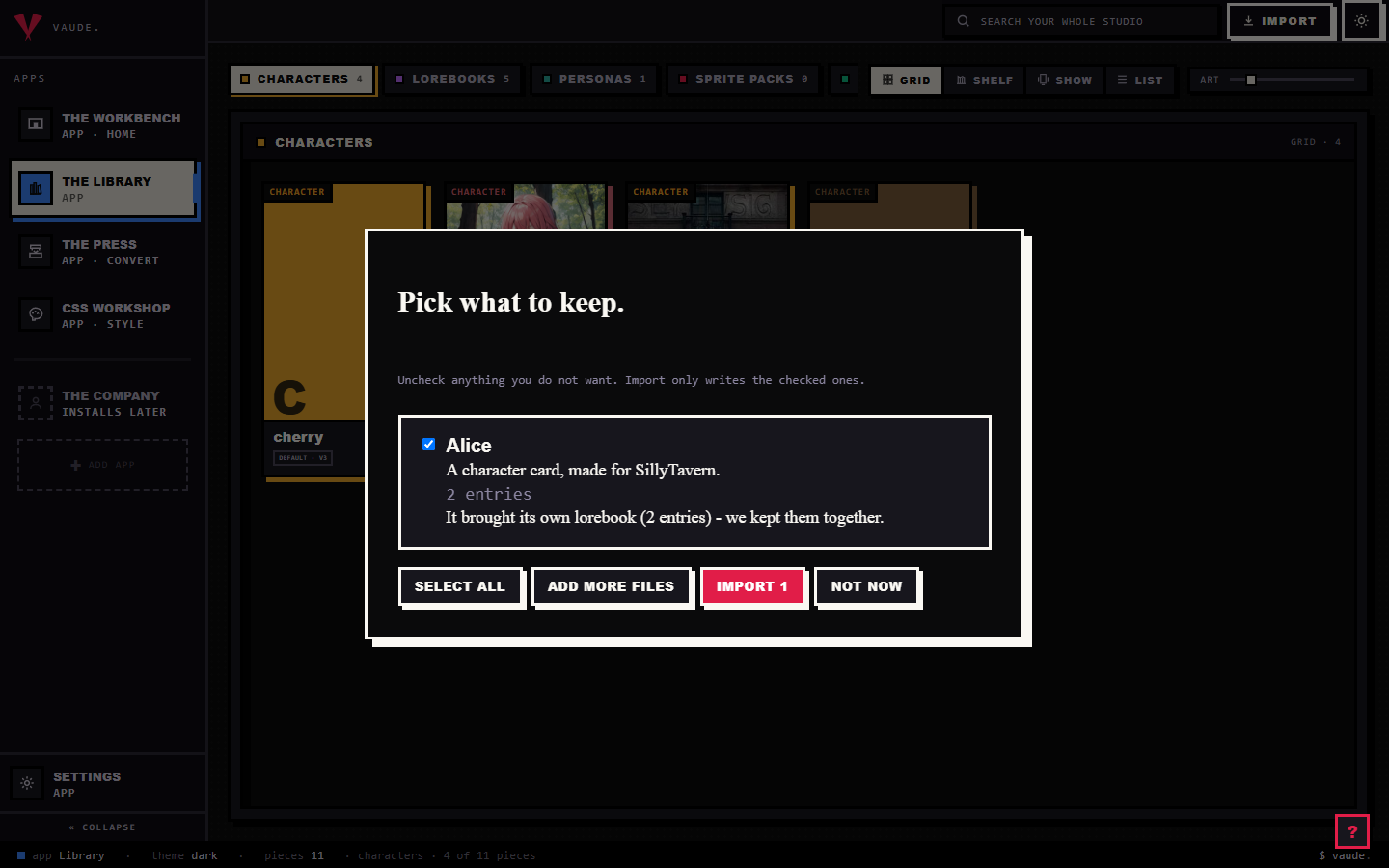
- Read the receipt. Each file is read on its own and handed back as a card: its name, the kind of piece it is, and the platform it was made for, "A character card, made for SillyTavern." A file that could not be read shows the reason instead, and does not stop the others.
- Uncheck anything you do not want, then click Import on the receipt. Every file that read cleanly starts checked. That button carries a live count, Import 3, not the plain Import you clicked in step one, so you always know how many you are about to write. Use Select all to reset the batch, or Add more files to read another round into the same overlay first.
- Find it on its deck. A saved piece lands on the deck that matches its kind: character, lorebook, persona, or regex set. Open it on the Workbench when you want to edit it, or leave it on the shelf until you do.
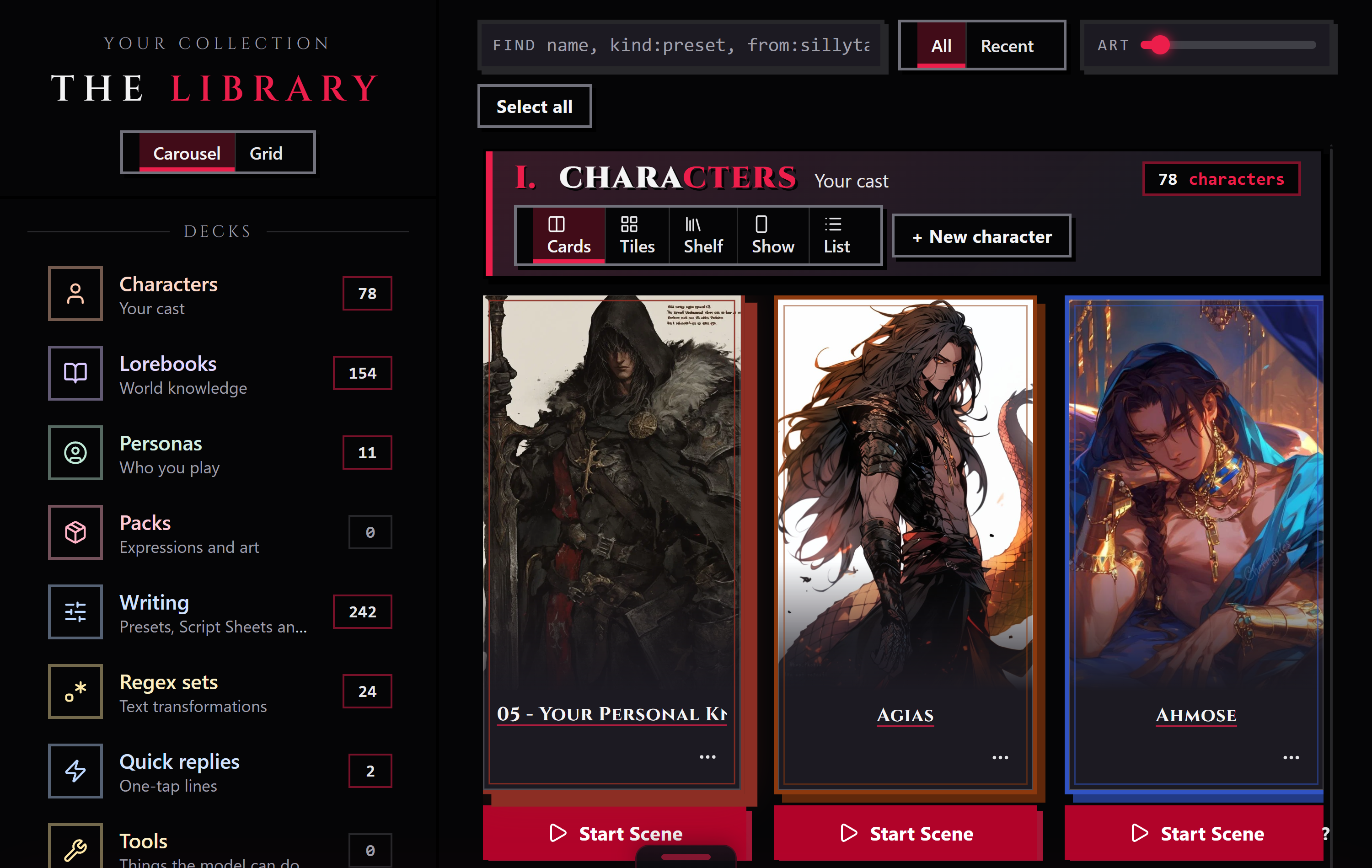
On a brand-new, empty studio the drop zone is also a button. Click it and a real file browser opens, the only place in the app that happens outside an active import.
What gets kept

Every import is read into the same shared model the rest of the studio uses, so the receipt already knows what it is looking at before anything gets written.
Your original file is kept, whole. Whatever Bunzai cannot use directly, an app's private layout, ids, anything with no slot in the shared model, is kept alongside the piece rather than thrown away. That is the same saved copy a same-app export reads back from later.
A slightly broken lorebook is healed, not rejected. A book with a missing name, or entries that are not quite the right shape, is quietly repaired on the way in. The receipt lists what it fixed and how many entries it kept, so you are never guessing what changed.
Scripts are saved, not run. A card that carries trigger scripts or regex says so on its receipt, and those scripts are stored as text; nothing on the card executes just because you imported it. A card that asks for deep access has that request refused outright, and the receipt says so plainly. A persona file is not filed as a character either, the receipt tells you as much and shelves it with your personas instead.
Importing never overwrites. Drop the same file twice and you get two pieces, not one refreshed, the second lands with -2 tacked onto its id. If you meant to update a piece you already have, open it on the Workbench and save from there; that path overwrites on purpose, importing never does.
Importing many at once
Drop a whole folder's worth of files at once and each one is read and reported on its own. The overlay reads "Pick what to keep" when every file came back clean, or "Here is what we read" when some did not; either way, the ones that failed sit with their reason and never block the ones that worked.
You do not have to write everything in one pass. Add more files reads another batch into the same overlay, on top of whatever you have already checked or unchecked, so you can build up a big import over several drags before you click Import once.
You also do not need to be looking at the right deck first. A lorebook dropped while you are looking at Characters still lands on the Lorebooks deck; the shelves route each file to its own deck by kind, not by whichever chip happens to be open.
Tips
- The Import button in the corner does not browse your files, it only carries you to the shelves and reminds you to drop something there.
- A file that fails to read is not a lost cause: fix it in the app that made it and try the drop again, or check whether it is a format Bunzai does not know yet.
- Uncheck a file in the receipt before you click Import if you decide you do not want it; the rest of the batch imports normally.
- Read the extras on a character's receipt before you assume nothing came along with it; an embedded lorebook, scripts, or a deep-access request each get their own line.
- To update a piece you already imported, edit it open on the Workbench and save there. Re-importing the same file always makes a second copy, never a refresh.