Docs / User / Get started
Get started
Getting started is four things: install Bunzai, run the first-run wizard once, learn the rooms the Dock shows you, and bring your first file into the Library. The wizard does not restrict what you can make or publish. Settings keeps the choices that matter after setup: theme, first Library deck, publish targets, and accent.
The short version
- Install Bunzai. There is no published release yet. To use the currently available source checkout,
install Bun 1.4.2 and use:
See the illustrated installation guide for platform choices, first launch,git clone --recurse-submodules https://github.com/Vaudeville-Studios/Bunzai.git cd Bunzai bun install --frozen-lockfile
library backups, updates, and troubleshooting. - Open the studio. From the available source checkout, run:
This starts the primary loopback server and prints its address,bun run dev127.0.0.1:8321by default. Open
that in your browser. Optional remote listeners remain off until you enable Remote access. Your
pieces live encrypted inlibrary.dbin a studio folder atDocuments/Bunzai Studiounless you
point it elsewhere:bun run bunzai ui 8321 path/to/studio. - Answer the wizard, or don't. The very first run only, it asks four questions. Skip all fills in the defaults and drops you straight into the studio. Theme, first deck, publish targets, and accent can change later in Settings.
- Land on the Library's two doors. A brand-new studio opens here exactly once. Drag a file onto the primary door, or click it to browse for one.
- Check the receipt, then click Import. Uncheck anything you do not want kept. Import only writes the pieces still checked.
To generate a scene reply, add a provider connection and select a model in Settings. A provider is not needed to import, edit, or convert local files. See the installation guide for the provider setup context, library backups, and updates.
The first-run wizard
The wizard only appears once, the first time bun run dev finds no completed setup in your studio's settings. Once you finish it, or skip it, it never comes back on its own. It asks four questions, in this order:
- Choose your theme. RoleCall is the default; Theater, Paper, and GirliePop are also available.
- What do you want to make? Pick one or more of Characters, Lorebooks, Personas, Packs,
or Presets. The first selection decides which Library deck opens first; Characters is the
fallback when you skip the question. Nothing is locked to these choices. - Where do you publish? A multi-select list, pulled live from every platform format Bunzai currently knows (so a new format you drop in earns a slot automatically). Not sure yet is the default and keeps every slot ready either way.
- Pick your color. Choose a house-palette accent or enter a custom color. Rose is the default.
Skip all at any point fills whatever is left with its default and jumps to the closing screen. That screen says "You're set," recaps what you picked, and Open Bunzai carries it into the studio.

Theme, first deck, publish targets, and accent all live in Settings after this, so nothing you pick here is permanent. What is permanent is the moment itself, this wizard runs on your very first launch and then gets out of the way for good.
The Dock
The Dock gathers the everyday app tiles. In the RoleCall workspace shown here, it runs along the bottom of the studio:
- The Workbench is where a piece you send to it gets edited, character, lorebook, persona, regex set, preset, or pack, each with its own editor pane.
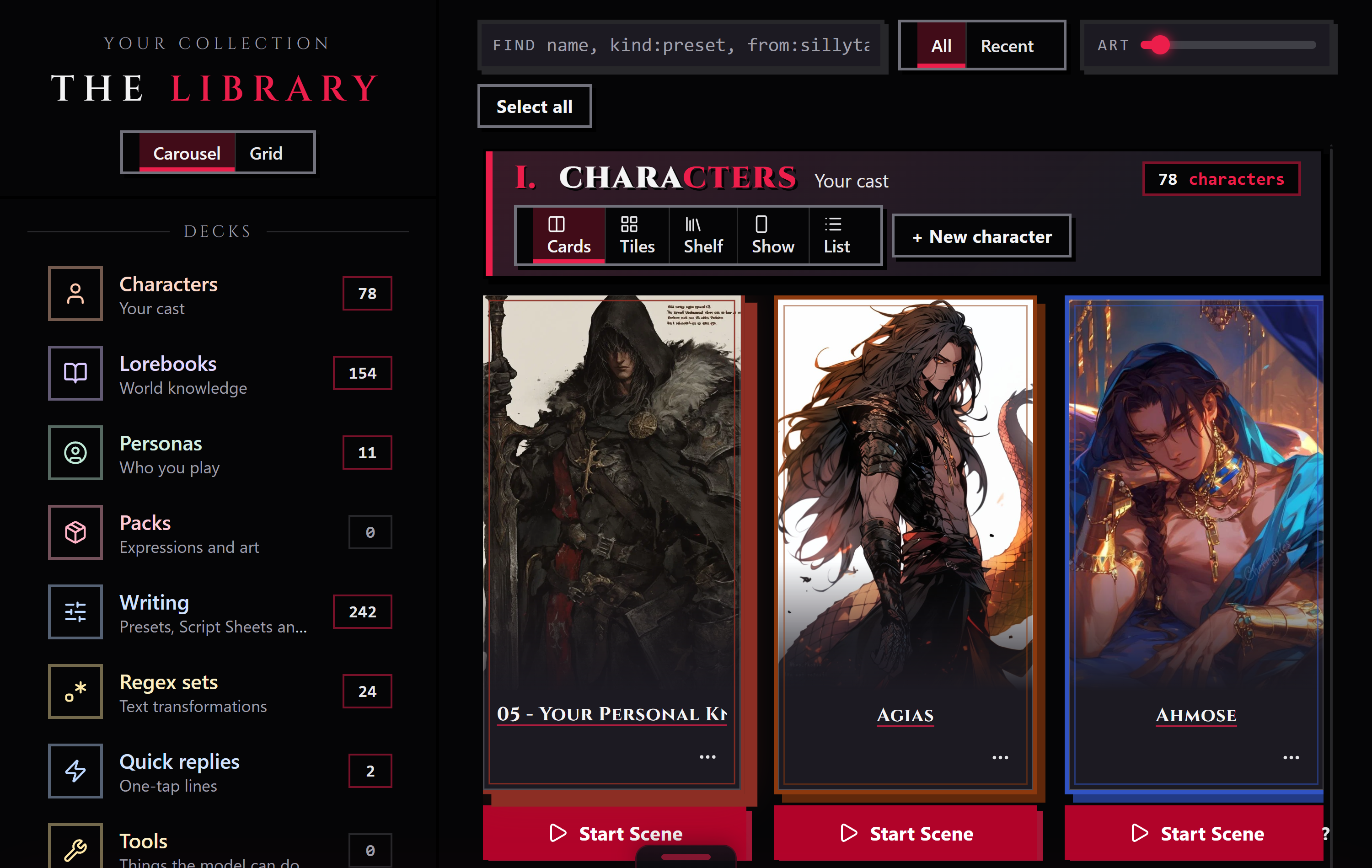
- The Library is the browse room: every deck's cards in rows or a grid, a rail of decks with live counts that shows one deck alone with its views, and the door your files come in through.
- The Press ships work out. It only ever works a staged queue: right-click a piece anywhere and choose Stage for the Press, pick one target platform, click run the press, then download the bundle.
Settings stays reachable from the Dock. The app catalog contains included specialist
tools such as Docs and the CSS Workshop, plus future apps such as The Company; catalog-only tools are not
ordinary Dock tiles. Your chosen home app controls a normal launch, while a reload restores the room you
were using when possible.
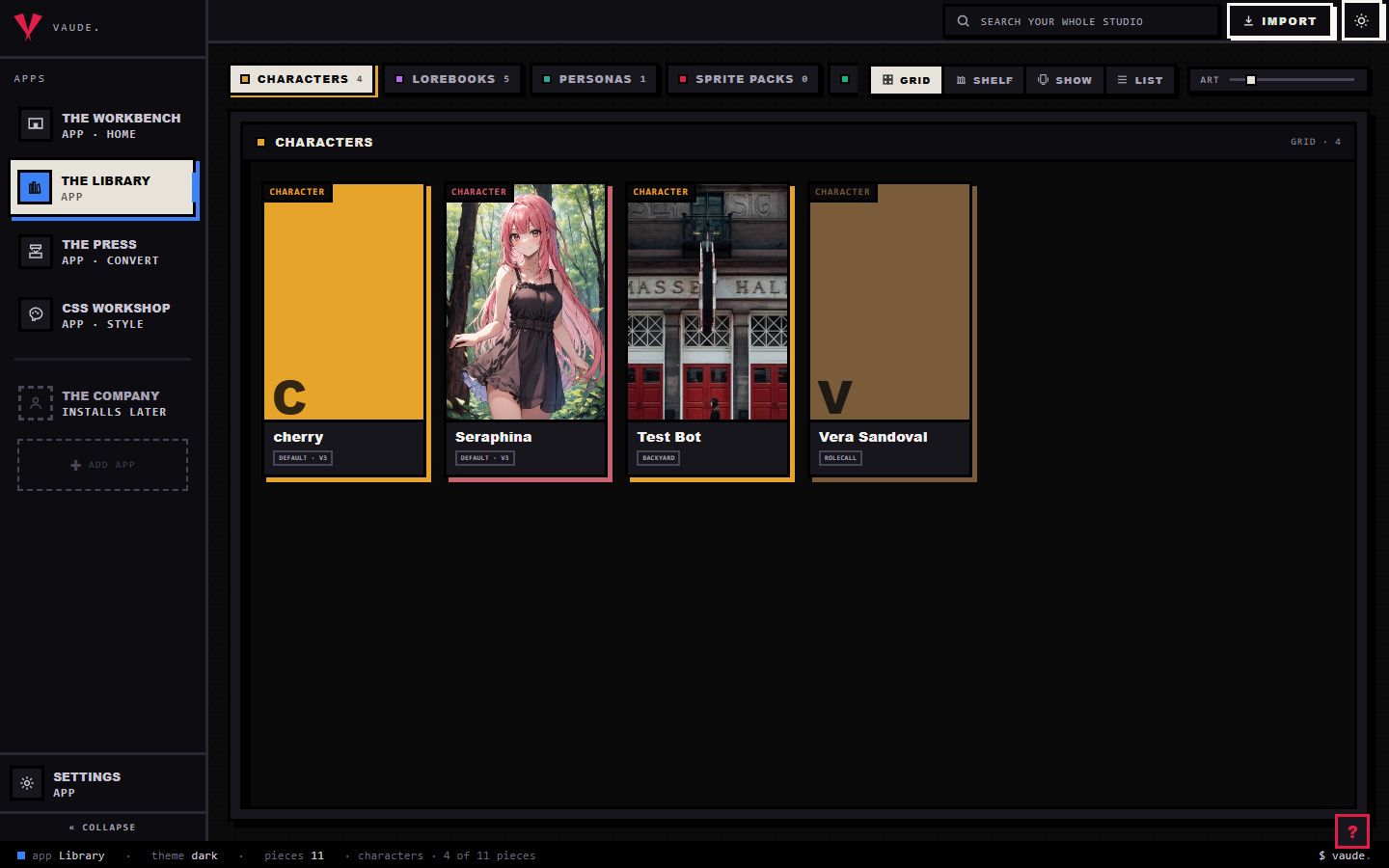
Bringing in your first file
On an empty studio, the Library's primary door does two jobs: drop a file onto it, or click it to open a file picker. Once your studio has pieces in it, that door is gone, but import still works the same way, drop a file anywhere on the Library and the same flow runs.
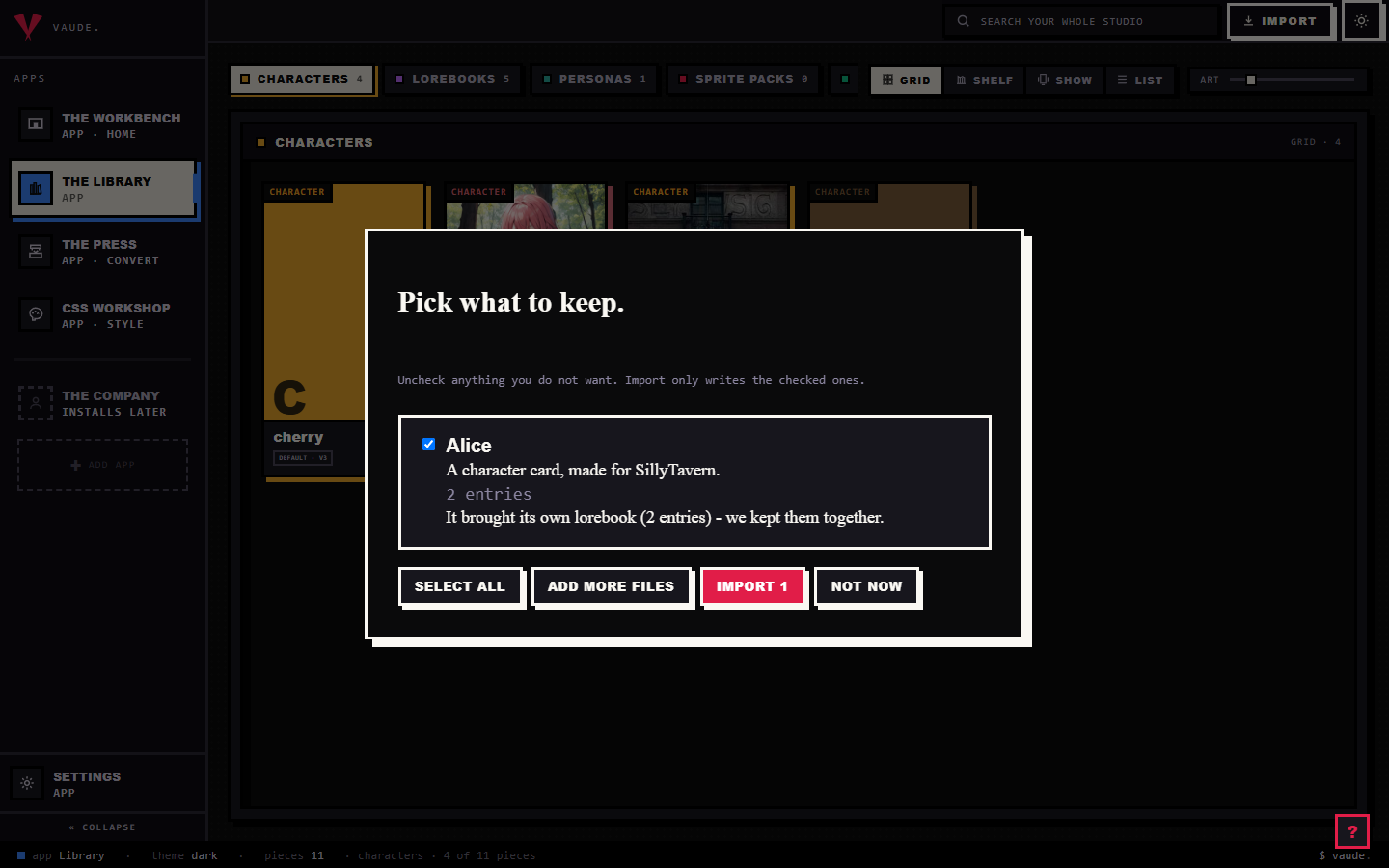
Every file you bring in gets read before anything is written. You see one of two headings: "Pick what to keep," when everything you dropped read cleanly, or "Here is what we read," when some of it didn't. Each readable file shows as a receipt, name, what kind of piece it is, and a checkbox, checked by default. A file Bunzai could not read shows its own line instead, with a plain-words reason, and no checkbox. Add more files appends to the batch without starting over; Import N writes only the pieces still checked; Not now closes the overlay and writes nothing.
The empty studio's second door, "Click here to start fresh," creates a blank character, saves it, and
opens it in the Workbench. Use the import door when you already have a supported file.
Tips
- When a release is published, its platform assets will appear on GitHub Releases. Until then, the source checkout is the available local installation path.
- Bun 1.4.2 is the version pinned by this checkout.
- The wizard's Skip all is not a lesser path. It fills the defaults; the retained setup choices remain editable in Settings.
- The first kind selected under "What do you want to make?" chooses the initial Library deck. After that, the Library remembers the deck you last opened.
- A lorebook that arrives attached to a character comes in as one bundle under one receipt row; that row's entry count is the lorebook's.
- If a file's receipt reads "We could not read this one," Bunzai could not safely parse it. The file
may be unsupported, malformed, or damaged.bun run bunzai formatslists the adapters currently
available. - Point the studio at a different folder any time with
bun run bunzai ui 8321 path/to/studio. Nothing about your studio folder is baked into the install.